To fix most CS2 VAC errors, restart your PC, verify your game files in Steam, and fully restart Steam. These three steps resolve the error for the majority of players. If that doesn’t work, this guide covers every fix from quick workarounds to advanced solutions.
You boot up CS2, your friends are waiting in the lobby, and then you see it: a VAC error. You can’t queue. You try verifying your game files, restart the game, verify again, and the same error stares back at you. Now your friends are waiting even longer while you’re Googling fixes and hoping something works.
We’ve been there. VAC errors in CS2 are some of the most frustrating issues in the game because the error messages are vague and the fixes feel random. What works for one person does nothing for another.
“The fact that this shit happens to this day, and no one knows a fix. Either it’s the most RANDOM and subjective solution, or it stays.”– u/BodinBro on r/GlobalOffensive
This guide covers every single VAC error you can encounter in CS2, what causes them, and how to fix them, ranked from quickest to most involved. For the official Valve documentation, see Valve’s VAC FAQ.
TL;DR: Quick Fix
- Restart your PC (not just Steam, full reboot)
- Verify game files: Steam Library → right-click CS2 → Properties → Installed Files → Verify
- Fully restart Steam (kill all Steam processes in Task Manager)
- Still broken? Start a practice match with bots, play one round, leave, then queue again
Every CS2 VAC Error Message Explained
There are over a dozen different VAC-related error messages in CS2. They look different, but most of them boil down to the same core problem: VAC can’t verify that your game files are clean. Here’s every error you might see, grouped by type.
Session and Verification Errors
These are the most common VAC errors. They prevent you from queuing for matchmaking.
“VAC was unable to verify your game session”
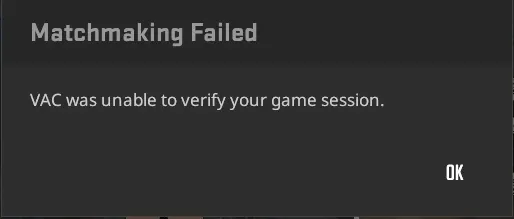
The most common VAC error by far. This means VAC failed to validate your game files before starting matchmaking. It’s not a ban. Restarting your PC fixes this in most cases. Jump to fixes.
“Some of your game files have been detected to have no signatures or invalid signatures. You will not be allowed to join VAC secure servers.”
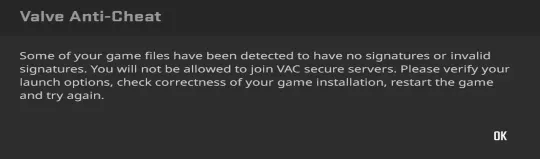
Your game files are corrupted, modified, or missing their digital signatures. This often happens after a CS2 update, or if your antivirus quarantined a file. Fix #8 (delete .sig files) specifically targets this error, or start with the quick fixes.
Connection and Disconnection Errors
These errors kick you out of matches or prevent you from joining servers entirely.
“You cannot play on secure servers for one of the following reasons: An issue with your computer is blocking the VAC system. You are unable to maintain a stable connection to the VAC system. You are running software that is modifying the game or is incompatible with VAC.”
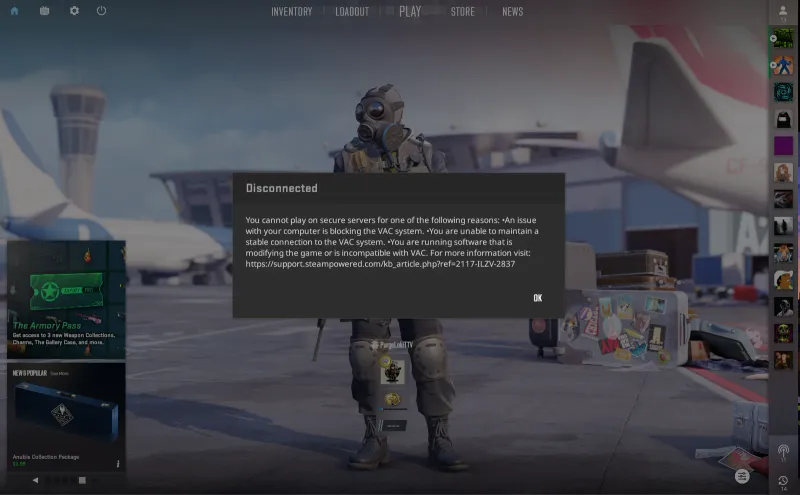
This is the catch-all disconnection error. It lists three possible causes, but the message doesn’t tell you which one applies to you. Third-party overlays (Discord, NVIDIA GeForce Experience, MSI Afterburner) and antivirus software are the most common culprits. See Fix #11 (close third-party software).
Other connection-related error messages you might see:
- “Secure connection failed”
- “No Steam logon”
- “A connection to the VAC servers could not be made”
These three are network-related variants. They usually mean Steam lost its connection to Valve’s authentication servers. Check your internet connection, flush your DNS, and make sure your firewall isn’t blocking CS2.
Timeout Errors
“Valve Anti-Cheat challenge timed out”
This one shows up mostly in Deathmatch. VAC tries to verify your session during gameplay and if it takes too long, you get kicked. It’s often a server-side issue that resolves itself, but restarting Steam and verifying game files can speed things up.
VAC Live Errors (Real-Time Anti-Cheat)
VAC Live is Valve’s newer real-time anti-cheat system. Unlike traditional VAC which scans files, VAC Live monitors your gameplay during matches. If it detects something it considers “irregular,” the match gets cancelled on the spot.
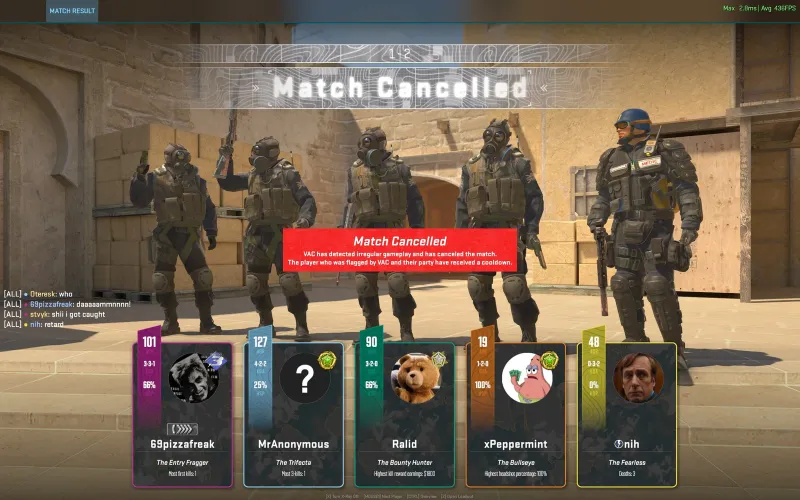
We’ve had this happen once in hundreds of hours of playtime. A player in the match got flagged, the match was cancelled near the end, and the flagged player got a cooldown. The frustrating part? A cooldown isn’t a ban. That player could be back in matchmaking within 24 hours.
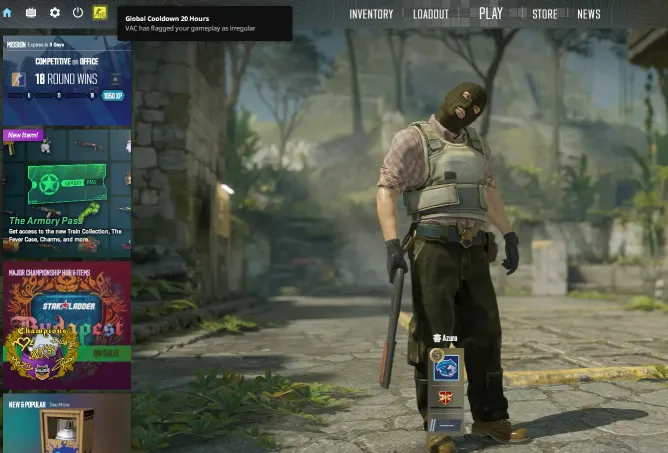
If you get a “Global Cooldown - VAC has flagged your gameplay as irregular” message, there’s no fix. You have to wait it out. Cooldowns start at 20 hours and escalate to 7 days for repeat offenses. The same escalation hits players who get kicked by VAC errors during competitive matches.
“I basically can’t play 2-3 games without it coming up again and giving me a competitive cooldown. I can’t fix it in time to join back and sometimes it just doesn’t fix itself at all.”– u/SnowScald on r/CounterStrike
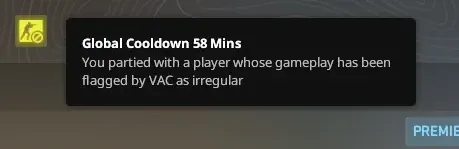
You can even get a cooldown for playing with someone who gets flagged. If your party member’s gameplay is flagged as irregular by VAC, everyone in the party receives a shorter cooldown. There’s nothing you can do about this except be careful who you queue with.
Permanent Bans
“VAC banned from secure server”
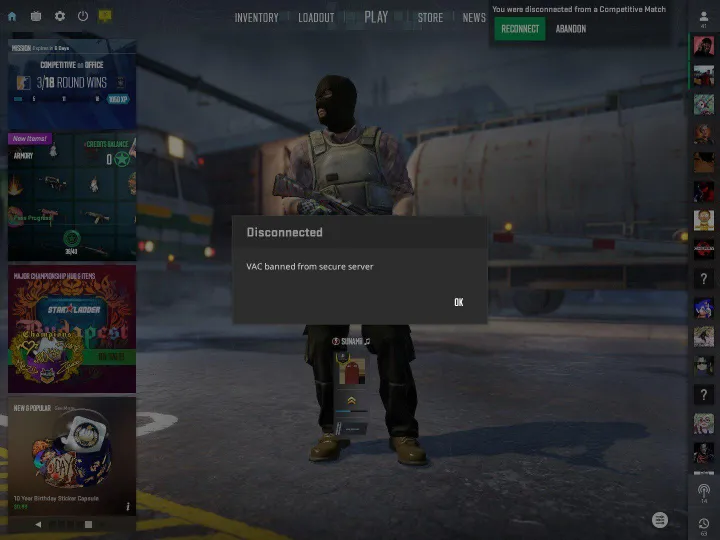
This is the only error on this list you cannot fix. A VAC ban is permanent and means Valve detected cheat software on your account. There is no appeal process. Your account is permanently restricted from all VAC-secured servers.
A Game ban is similar but only applies to CS2 specifically, not all VAC-secured games. On your Steam profile, it shows up like this:

This badge stays on your profile permanently. Other players can see it, and it doesn’t go away even after years.
Valve has issued false positive ban waves in the past. In January 2026, a CS2 update caused a wave of incorrect bans that Valve reversed the next day. AMD’s Anti-Lag+ driver feature also triggered false VAC bans in October 2023, which were later reversed. If you believe you were falsely banned during a known ban wave, check Steam’s VAC Discussion forum to see if others are affected.
How to Fix CS2 VAC Errors (Step by Step)
Fixes are ordered from fastest to most involved. Start at the top and work your way down. Most people won’t need to go past the first three steps.
Quick Fixes (Under 2 Minutes)
1. Restart Your PC
EasyNot just restarting Steam. A full PC reboot. This clears stale processes, resets Steam’s authentication tokens, and fixes the majority of “unable to verify your game session” errors. This is what consistently works for us.
2. Start a Practice Match With Bots
EasyThis sounds dumb, but it works. Start an offline match with bots, play for one round, then leave and queue for matchmaking. Multiple community guides and YouTube creators confirm this as a reliable workaround when the error appears before queuing.
“Open csgo, play 1 round with bots, finish that round and go back to cs2. It will work, don’t ask how because i have no idea.”– u/ilovezeclouds on r/CounterStrike
Nobody knows why this works. The best theory is that it forces VAC to re-validate your session. Whatever the reason, dozens of players on r/cs2 confirm it.
3. Re-Login to Steam
EasyGo to Steam → Change Account → log back in. This forces Steam to regenerate the session token that VAC uses for verification.
Basic Fixes (5-20 Minutes)
4. Verify Integrity of Game Files
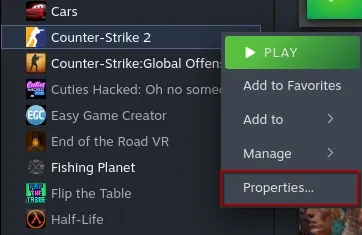
MediumThe classic fix. Right-click CS2 in your Steam Library, click Properties.
Go to Installed Files, then click Verify integrity of game files.
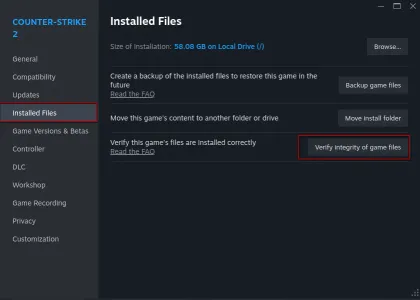
This scans all CS2 files and re-downloads any that are corrupted or missing. On an SSD it takes about 5 minutes. On an HDD it can take 15-20 minutes. Important: after verifying, fully restart Steam before launching CS2. A lot of people skip this step and wonder why verifying didn’t fix anything.
“Verifying integrity of files didn’t work. Running steam as admin didn’t work. Reinstalling CS2. Nothing. Closed and reopened Steam. Went into private match. Literally nothing is working.”– u/SnooFloofs7419 on r/CounterStrike
If verifying alone doesn’t fix it, don’t panic. Keep going through the fixes below.
5. Kill All Steam Processes and Restart
MediumThis is the step a lot of people miss. After verifying game files, don’t just relaunch the game. Exit Steam entirely, then open Task Manager (Ctrl+Shift+Esc), go to the Details tab, and end every process named steam.exe, steamwebhelper.exe, steamservice.exe, or GameOverlayUI.exe. Then relaunch Steam fresh.
6. Clear Steam Download Cache
MediumGo to Steam → Settings → Downloads → Clear Download Cache and confirm. This clears cached data that can interfere with VAC verification. You’ll need to log back into Steam after clearing the cache. Restart Steam completely before launching CS2.
7. Run Steam as Administrator
MediumNavigate to your Steam installation folder (usually C:\Program Files (x86)\Steam\), right-click steam.exe, go to Properties → Compatibility, and check Run this program as administrator. This gives Steam the permissions it needs to let VAC access protected system files.
8. Repair the Steam Service
MediumOpen Command Prompt as Administrator and run:
"C:\Program Files (x86)\Steam\bin\SteamService.exe" /repair
This repairs the Steam Service that VAC depends on. It runs silently and finishes in a few seconds. Restart Steam after running it.
9. Check Windows Firewall
MediumMake sure both Steam and CS2 are allowed through Windows Firewall:
- Open Windows Defender Firewall → Allow an app through firewall
- Click Change settings
- Find Steam and Counter-Strike 2 in the list
- Check both Private and Public
- If CS2 isn’t listed, click Allow another app and browse to
cs2.exe
For a more detailed walkthrough on network issues affecting CS2, check our guide on fixing CS2 server connection errors.
Advanced Fixes (10-30 Minutes)
10. Delete .sig Files and Verify Again
AdvancedThis specifically targets the “no signatures or invalid signatures” error:
- Navigate to your CS2 install folder:
C:\Program Files (x86)\Steam\steamapps\common\Counter-Strike Global Offensive\game\bin\win64\ - Enable Show file name extensions in File Explorer
- Delete all
.sigfiles in the folder - Run Verify integrity of game files in Steam to re-download clean copies
11. Close Third-Party Overlays and Software
AdvancedThese programs are known to interfere with VAC:
- Discord Overlay (disable in Discord Settings → Game Overlay)
- NVIDIA GeForce Experience / Ansel
- MSI Afterburner / RivaTuner
- Xbox Game Bar
- Cheat Engine (even if not running, having it installed can trigger VAC)
- Any debugging or memory inspection tools
12. Flush DNS and Reset Network
AdvancedOpen Command Prompt as Administrator and run these commands one at a time:
ipconfig /flushdnsnetsh winsock resetnetsh int ip reset
Restart your PC after running these. This fixes “No Steam logon” and “Secure connection failed” errors by resetting your network stack.
13. Run System File Checker
AdvancedCorrupted Windows system files can interfere with VAC. Open Command Prompt as Administrator and run:
sfc /scannow
This scans and repairs Windows system files. It takes 10-15 minutes. Restart your PC when done.
14. Opt Out of Steam Beta
AdvancedIf you’re participating in the Steam beta client, opt out. Go to Steam → Settings → Interface → Client Beta Participation and set it to No beta chosen. Beta Steam versions can cause VAC compatibility issues. Restart Steam after changing this.
15. Sync Your System Clock
AdvancedAn incorrect system time can cause VAC verification failures. Go to Settings → Time & Language → Date & Time and click Sync now. Make sure Set time automatically is enabled.
16. Move CS2 to the Same Drive as Steam
AdvancedIf CS2 is installed on a different drive than Steam, this can cause persistent session verification failures. In Steam, go to CS2 Properties → Installed Files → Move install folder to move it to your Steam drive.
Nuclear Option
17. Reinstall CS2
AdvancedIf nothing else works, uninstall CS2 completely and reinstall it from scratch. This ensures all files, including VAC components, are fresh. A clean install also resets any launch options or local configuration that might be causing issues.
In most cases, restarting your PC and verifying game files resolves CS2 VAC errors within minutes. If you need to go deeper, the advanced fixes above cover every known cause. The key is working through them in order rather than jumping to a reinstall.
VAC Error vs VAC Ban: Know the Difference
This confuses a lot of people, so let’s be clear:
| Aspect | VAC Error | VAC Ban |
|---|---|---|
| What is it? | Temporary technical issue | Permanent account restriction |
| Can you fix it? | Yes, using the fixes above | No |
| Cause | Corrupted files, software conflicts, network issues | Cheat software detected |
| Duration | Until you fix it (minutes to hours) | Permanent |
| Affects other games? | No | Yes (all VAC-secured games) |
| Shows on profile? | No | Yes (permanent badge visible to all) |
Getting a VAC error does not put you at risk of a VAC ban. They are completely separate systems. A VAC error is Steam failing to verify your files. A VAC ban is Valve detecting cheat software on your account.
The State of VAC in 2026
Let’s talk about the elephant in the room. VAC isn’t great at catching cheaters. After hundreds of hours in CS2, we’ve encountered countless players using soft aim locks and suspicious wallhack-like behavior. We’ve had exactly one VAC Live trigger in-game. Even when spectating a teammate who was obviously cheating, VAC didn’t step in.
“It seems that VAC is banning everyone BUT the cheaters.”– u/Volfong on r/GlobalOffensive (119 upvotes)
An academic analysis of 11 popular FPS games found that CS2 uses “user mode” anti-cheat, the weakest detection level. Games like Fortnite, Apex Legends, Rainbow Six Siege, and Warzone all use kernel-level anti-cheat, which operates deeper in your system and catches more cheats.
DMA hardware cheats are making things worse. These use a physical PCIe card in a second computer to read your game’s memory, making them nearly invisible to software-based anti-cheat. The cheat runs on entirely separate hardware, so VAC has nothing to scan on your gaming PC. FACEIT claimed in February 2026 that their anti-cheat can detect DMA cheats, and Valve released a major VAC Live update in September 2025 targeting hardware cheats, but it’s an ongoing arms race.
That said, Valve is clearly doing something behind the scenes. On March 27, 2026, CS2 project lead Ido Magal confirmed that Valve banned 960,000 farming bot accounts in a single day, the largest ban wave in CS2 history. He stated: “Yesterday we banned 960,000 farming bot accounts. This was the result of a bunch of investigation that benefited from user reports.”
960,000 bans in one day shows Valve has the tools to detect irregular behavior at scale. The frustration is that these were mostly bots farming case drops, not the actual cheaters ruining competitive games. Bots in Deathmatch are annoying, but they’re not the ones hitting soft aim locks in your Premier matches.
The community wants to see that same energy directed at competitive cheaters. Reporting suspicious players still matters. Valve specifically asked players to continue reporting to csgoteamfeedback@valvesoftware.com. Whether individual reports lead to action is unclear, but the 960K ban wave was partially driven by user reports according to Magal.
Frequently Asked Questions
How do I fix "VAC was unable to verify your game session" in CS2?
Restart your PC first, as this fixes the error in most cases. If it persists, verify your game files in Steam (Library → right-click CS2 → Properties → Installed Files → Verify integrity of game files), then fully restart Steam. Starting a practice match with bots and leaving it can also clear the error.
What does the "no signatures or invalid signatures" error mean?
This means VAC detected that some of your CS2 game files are corrupted, modified, or missing their digital signatures. It does not mean you are banned. Verify your game files through Steam. If that doesn't work, delete the .sig files in your CS2 game/bin/win64/ folder and verify again.
Is a VAC error the same as a VAC ban?
No. A VAC error is a temporary technical issue that you can fix. A VAC ban is permanent and means Valve detected cheat software on your account. VAC errors do not lead to bans unless you're actually running cheat software.
Why do I keep getting VAC errors after every CS2 update?
Updates modify game files, which can cause temporary verification failures. Restart your PC and verify game files after every update. If you have CS2 on a different drive than Steam, consider moving it to the same drive.
What is VAC Live and why did it cancel my match?
VAC Live monitors gameplay in real time. If it flags irregular behavior, the match gets cancelled and the flagged player receives a cooldown (20 hours to 7 days). Unfortunately, it can produce false positives. There's no appeal, so you have to wait it out.
Can antivirus software cause CS2 VAC errors?
Yes. Antivirus programs can quarantine or modify CS2 files, triggering VAC errors. Add your Steam and CS2 folders to your antivirus exclusion list. Windows Defender, Avast, and Norton are common culprits.
Does VAC actually catch cheaters in CS2?
Some, but not enough. CS2 uses user-mode anti-cheat, the weakest level among major FPS games. Valve banned 960,000 bot accounts in March 2026, proving they can act at scale, but the community wants more action against competitive cheaters, especially those using DMA hardware cheats.
How do I fix "An issue with your computer is blocking the VAC system"?
Close all overlays (Discord, NVIDIA, MSI Afterburner), whitelist CS2 in your antivirus, and repair the Steam Service by running SteamService.exe /repair as administrator. Make sure you're not running Cheat Engine or any debugging tools.
Still having VAC issues after trying everything? Join 25,000+ CS2 players in our Discord and ask in our tech support channel. Someone's probably dealt with the exact same error.
