
Tired of pulling out your phone every time you need to confirm a Steam trade? Want to manage multiple Steam accounts without juggling devices? A Steam Desktop Authenticator lets you generate Steam Guard codes and confirm trades directly from your PC.
In this guide, we’ll cover everything you need to know about desktop authenticators: what they are, why you’d want one, and the best options for Windows and Linux in 2026.
What Is a Steam Desktop Authenticator?
A Steam Desktop Authenticator is software that replicates the Steam Mobile Authenticator on your computer. Instead of using your phone to:
- Generate Steam Guard 2FA codes
- Confirm trade offers
- Approve Steam Community Market listings
You can do all of this directly from your desktop. The authenticator stores your account’s shared_secret and identity_secret (the cryptographic keys that generate your codes) locally on your computer.
Why Use a Desktop Authenticator?
There are several compelling reasons to move your Steam Guard to your PC:
1. Multiple Account Support
The official Steam mobile app only supports one account per device. If you have alt accounts, a smurf, or manage accounts for family members, you’d need multiple phones. Desktop authenticators let you manage unlimited accounts from a single application.
2. Faster Trade Confirmations
If you’re an active trader, constantly switching between your PC and phone is tedious. With a desktop authenticator, you can confirm trades with a few clicks without leaving your desk. Some tools even offer auto-confirm features for trusted trades.
3. Backup and Portability
Your authenticator data is stored in .maFile format, which you can backup and transfer between computers. Lost your phone? No problem. With the mobile app, losing your phone often means a lengthy recovery process through Steam Support.
4. Accessibility
Not everyone has a smartphone, or wants to use one for gaming-related tasks. A desktop authenticator gives you full Steam Guard functionality on the device you’re already using to play.
What Is a maFile?
A .maFile (Mobile Authenticator File) is a JSON file that contains all the cryptographic data needed to generate Steam Guard codes and confirm trades. It’s the core of how desktop authenticators work.
What’s Inside a maFile?
A typical .maFile contains these key fields:
{
"account_name": "your_steam_username",
"steamid": "76561198XXXXXXXXX",
"shared_secret": "xXxXxXxXxXxXxXxXxXxXxXx=",
"identity_secret": "yYyYyYyYyYyYyYyYyYyYyYy=",
"revocation_code": "RXXXXX",
"uri": "otpauth://totp/Steam:username...",
"device_id": "android:XXXXXXXX-XXXX-XXXX-XXXX-XXXXXXXXXXXX"
}
Here’s what each field does:
- shared_secret - The key used to generate your 2FA codes. This is the most critical value.
- identity_secret - Used to confirm trades and market listings. Required for trade confirmations.
- revocation_code - Your recovery code (starts with “R”) to remove the authenticator if needed.
- device_id - Identifies the “device” to Steam’s servers. Usually an Android-format UUID.
- steamid - Your 64-bit Steam ID.
How maFiles Are Created
When you set up a new account in a desktop authenticator, the software communicates with Steam’s servers to register as a new authenticator device. Steam responds with the secrets, which are then saved to the .maFile.
If you’re migrating from the Steam mobile app, you’ll need to either:
- Export from a rooted Android device - The Steam app stores these values in its data directory
- Remove and re-add - Remove the mobile authenticator, then set up fresh on the desktop app
- Use existing maFile - If you already have a .maFile from another desktop authenticator, import it
maFile Security: Critical Warnings
Your .maFile is essentially the keys to your Steam account. Anyone with your shared_secret and identity_secret can:
- Generate valid Steam Guard codes
- Confirm trades without your knowledge
- Approve market listings
- Potentially lock you out of your own account
Never share your .maFile with anyone. Never upload it to websites, paste it in Discord, or store it unencrypted in cloud storage. Treat it like your password.
Recommended Tools for Windows and Linux
Let’s look at the top options available for each platform. All of these are open source, meaning you can verify the code yourself and trust that there’s nothing malicious going on.
Windows: Steam Desktop Authenticator (SDA)
Steam Desktop Authenticator
by Jessecar96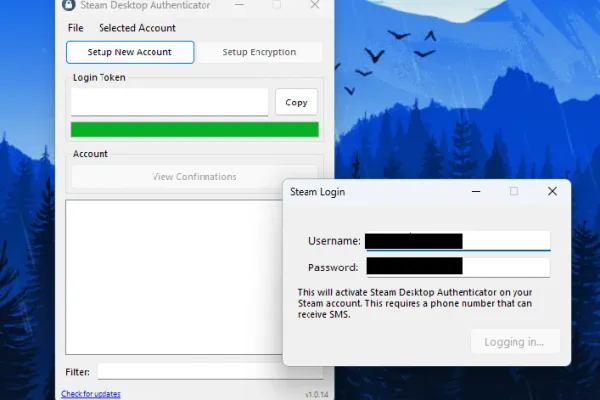
The original and most popular Steam Desktop Authenticator. SDA has been trusted by the community for years and has over 3,000 stars on GitHub. It’s written in C# and runs on Windows.
Features
- 2FA code generation
- Trade confirmations
- Multiple accounts
- Auto-confirm trades/market
- Encryption support
- Portable (no install)
How to Set Up SDA on Windows
- Download the latest release from the GitHub releases page
- Extract the ZIP file to a folder (e.g., Desktop)
- Run
Steam Desktop Authenticator.exe - Click “Set up new account” and enter your Steam credentials
- Steam will send an email verification code - enter it
- Enter the SMS code sent to your phone
- Save your recovery code! Write it down somewhere safe
- Set an encryption password to protect your accounts
Important: Make sure your computer’s time is synced correctly with the internet. Steam Guard codes are time-based, so even a few seconds off can cause issues.
SDA Security Tips
- Always set an encryption password - Without it, anyone who copies your files has full access to your accounts
- Use a unique, strong password - SDA doesn’t have brute-force protection like websites do
- Backup your maFiles folder - Store it securely (encrypted cloud storage or USB drive)
- Be careful with auto-confirm - If your account is compromised, auto-confirm will approve the attacker’s trades
Linux: Steam Authenticator Linux
Steam Authenticator Linux
by CS2 Central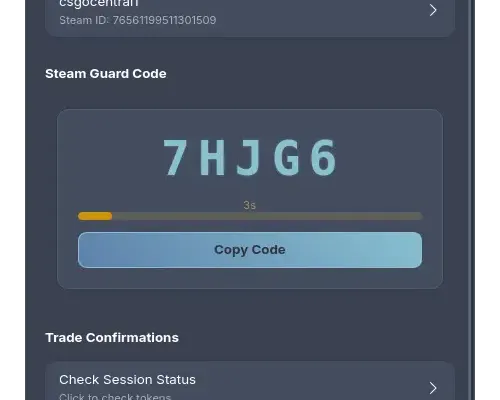
A modern, native Linux application built with GTK4 and libadwaita. Unlike running Windows tools through Wine, this authenticator is designed specifically for Linux with a beautiful, native UI that fits right in with your desktop.
Features
- 2FA code generation
- Trade confirmations
- Multiple accounts
- Set up new accounts directly
- 8 themes (Light, Dark, Nord, etc.)
- Import/export .maFile
- Backup & restore
- Native GTK4 UI
Installation Options
Steam Authenticator Linux supports all major distributions:
Setting Up Your First Account
- Open Steam Authenticator Linux
- Go to Menu → Set Up New Account
- Enter your Steam username and password
- Enter the verification code sent to your email or phone
- Save your recovery code - you’ll need it if you ever want to remove the authenticator
- Done! Your account is now protected and you can generate codes
Importing Existing Accounts
If you’re migrating from SDA or another authenticator, you can import your existing .maFile files:
- Go to Menu → Import Account for a single file
- Or Menu → Import Folder to import multiple accounts at once
macOS: Current Options
Unfortunately, there’s no dedicated native Steam Desktop Authenticator for macOS in 2026. Mac users have a few workarounds:
- Wine/CrossOver - Run the Windows SDA through compatibility layers
- Virtual Machine - Run Windows or Linux in a VM
- Web-based tools - Some exist but aren’t recommended for security reasons
- Continue using mobile - The safest option for Mac users
If you’re a developer interested in creating a native macOS authenticator, the open-source projects above can serve as reference implementations.
Feature Comparison
| Feature | SDA (Windows) | Steam Auth Linux | Steam Mobile App |
|---|---|---|---|
| 2FA Code Generation | Yes | Yes | Yes |
| Trade Confirmations | Yes | Yes | Yes |
| Multiple Accounts | Unlimited | Unlimited | 1 only |
| Set Up New Accounts | Yes | Yes | Yes |
| Import .maFile | Yes | Yes | No |
| Auto-Confirm Trades | Yes | No | No |
| Encryption | Passphrase | OS-level | Device |
| Backup/Export | Yes | Yes | No |
| Themes | No | 8 themes | No |
| Open Source | Yes | Yes | No |
| Native UI | Windows | GTK4/libadwaita | Mobile |
Security Considerations
Using a desktop authenticator is generally safe, but you need to understand the security implications:
Your .maFile Is the Keys to Your Account
The .maFile contains your shared_secret and identity_secret. Anyone with these values can:
- Generate valid Steam Guard codes
- Confirm trades on your behalf
- Approve market listings
Treat your .maFile like a password. Never share it, upload it anywhere, or leave it unencrypted on a shared computer.
Encryption Is Not Optional
Both SDA and Steam Authenticator Linux support encryption. Use it. If malware or an attacker gains access to your computer, encrypted files are significantly harder to exploit.
Remember: desktop authenticators don’t have rate limiting like websites. An attacker can brute-force weak passwords quickly. Use a strong, unique password.
Backup Your Recovery Code
When you set up an authenticator, Steam gives you a recovery code (starts with “R”). This is your emergency backup if you lose access to your authenticator. Store it:
- On paper in a safe place
- In an encrypted password manager
- NOT in a plain text file on your computer
Don’t Use Auto-Confirm Carelessly
SDA’s auto-confirm feature is convenient but dangerous. If your Steam account is compromised (via phishing or session hijacking), auto-confirm will approve the attacker’s trades automatically. Only use this if you fully understand the risks.
Frequently Asked Questions
What is a Steam Desktop Authenticator?
A Steam Desktop Authenticator is software that generates Steam Guard 2FA codes on your computer instead of your phone. It lets you confirm trades, manage multiple accounts, and create backups of your authenticator data.
Is using a Steam Desktop Authenticator safe?
Yes, if you use reputable open-source tools and follow security best practices. Always set a strong encryption password, keep your .maFile files secure, and only download from official GitHub repositories. Never share your shared_secret or identity_secret with anyone.
Can I use Steam Desktop Authenticator on Linux?
Yes! Steam Authenticator Linux by CS2 Central is a native GTK4 application built specifically for Linux. It supports Debian, Ubuntu, Arch, Fedora, openSUSE, and is available as a Flatpak for universal installation.
Can I have multiple Steam accounts on one authenticator?
Yes. Unlike the official Steam mobile app which only supports one account, desktop authenticators let you manage unlimited Steam accounts from a single application. This is especially useful for traders and users with alt accounts.
What happens if I lose my authenticator data?
If you lose your .maFile and don't have your recovery code, you'll need to contact Steam Support to remove the authenticator. This process can take several days. Always backup your .maFile files and save your recovery code in a secure location.
Will I get trade banned for using a desktop authenticator?
No. Desktop authenticators use the same Steam Guard system as the mobile app. Valve does not ban accounts for using third-party authenticators. However, if you remove your authenticator, you'll face a 15-day trade cooldown before you can trade again.
Can I use both mobile and desktop authenticators?
No. Steam only allows one authenticator per account. If you set up a desktop authenticator, it replaces your mobile authenticator. You can import your mobile authenticator's data to desktop if you have the .maFile, but you can't run both simultaneously.
What is a maFile and why is it important?
A .maFile (Mobile Authenticator File) is a JSON file containing your Steam Guard secrets: shared_secret for generating 2FA codes, and identity_secret for confirming trades. It's how desktop authenticators store your authenticator data. Keep it secure - anyone with your maFile can access your Steam Guard.
How do I import a maFile from another authenticator?
Most desktop authenticators support importing .maFile files directly. In SDA, use File → Import Account. In Steam Authenticator Linux, use Menu → Import Account for single files or Import Folder for multiple accounts. The maFile must contain valid shared_secret and identity_secret values.
Conclusion
Steam Desktop Authenticators are invaluable tools for traders, multi-account users, and anyone who wants more control over their Steam security. The key is choosing a reputable, open-source tool and following security best practices.
For Windows users: Steam Desktop Authenticator by Jessecar96 remains the gold standard with years of community trust.
For Linux users: Steam Authenticator Linux provides a native, modern experience with GTK4 and full feature parity.
Whichever you choose, remember: encrypt your data, backup your files, and never share your secrets.
Have questions about Steam authenticators or trading safety? Join our CS2 Central Discord where 25,000+ members discuss trading, security, and all things CS2.
Further Reading
- 10 Most Common CS2 Scams – Protect yourself from phishing and API scams that target Steam accounts
- CS2 Trust Factor Explained – Understand how your account standing affects matchmaking
- CSFloat Review 2026 – Safe marketplace for trading CS2 skins with proper authentication
