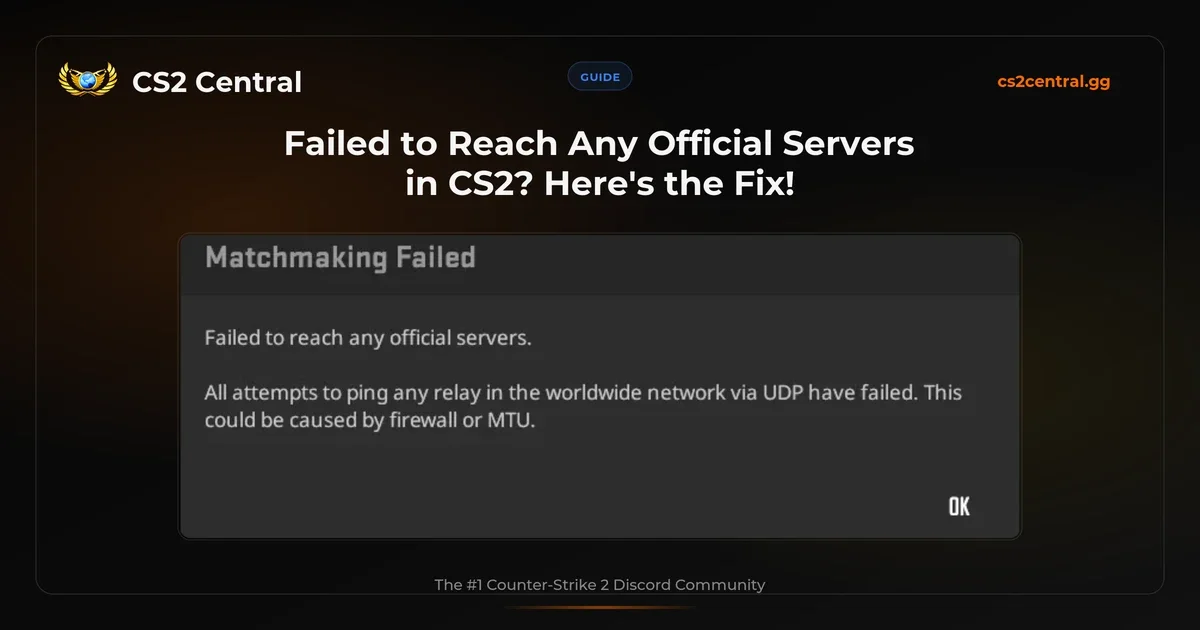
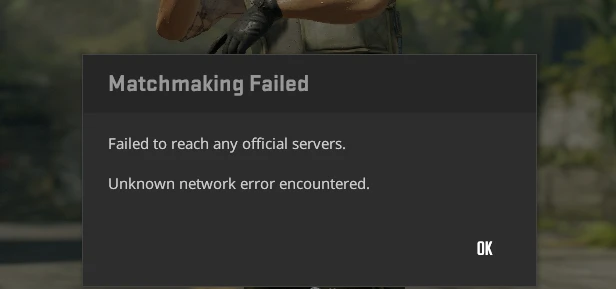
The "failed to reach any official servers" error in CS2 means your client can't reach Valve's relay network over UDP. The fix depends on the cause: check if servers are down first, then use a mobile hotspot test to determine if it's your home network (firewall, MTU, or router) or your PC. Most players fix it by adjusting their firewall settings or MTU value.
This error has been popping up more and more in our CS2 Central Discord throughout 2026. In this guide, we start with quick checks, then use a diagnostic test to figure out exactly where the problem is, so you only follow fixes that actually match your case.
- Check steamstat.us – servers down? Wait it out
- Restart Steam fully – Exit via menu, kill in Task Manager, relaunch
- Verify game files – Steam > CS2 > Properties > Installed Files
- Try your phone's hotspot – works? It's your home network. Doesn't work? It's your PC
- Follow the matching fix section below
Quick Checks First (Under 2 Minutes)
Before you change any settings, rule out the obvious. These three checks take under two minutes combined and solve the problem for a surprising number of players.
1. Are CS2 Servers Actually Down?
Open steamstat.us in your browser. This page shows real-time status for all Steam and CS2 services, including matchmaking, the Steam Community, and regional connection managers. If anything is red or orange, the problem is on Valve's end. Just wait it out.
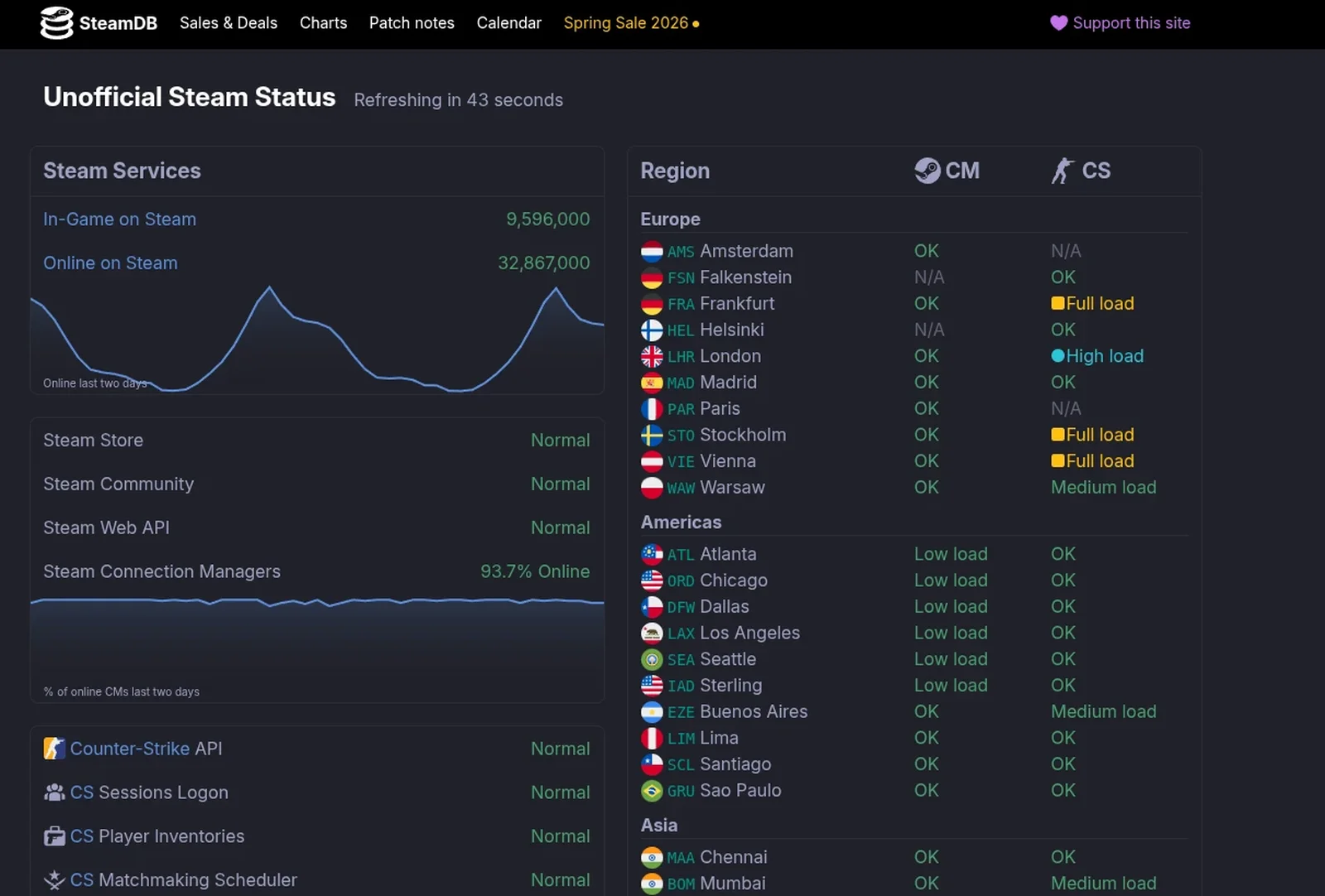
You can also check Downdetector to see if other players are reporting issues right now. A spike in reports means it's not just you.
2. Fully Restart Steam and CS2
Not just closing the window. Actually quit Steam:
- Click Steam in the top-left menu bar and select Exit
- Open Task Manager (Ctrl + Shift + Esc)
- Look for any remaining Steam or cs2 processes and end them
- Relaunch Steam and open CS2
Sounds basic, but Steam occasionally gets into a state where its network connection is stale. A full restart clears that. Multiple r/cs2 threads confirm this fixes the error when it appears randomly after the game has been running for a while.
3. Verify Game Files
Corrupted or missing game files can cause connection errors:
- Open your Steam Library
- Right-click Counter-Strike 2 and select Properties
- Go to Installed Files
- Click Verify integrity of game files
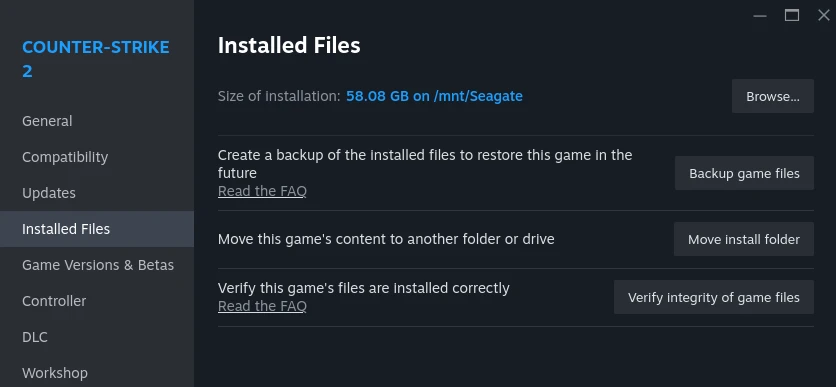
This takes 1-2 minutes. If Steam finds corrupted files, it will redownload them automatically.
Still Broken? The Hotspot Test
If the quick checks didn't help, we need to figure out whether the problem is your home network or your PC. There's one test that answers this instantly:
- Turn on the mobile hotspot on your phone (4G/5G)
- Connect your PC to it via WiFi
- Launch CS2 and try matchmaking
Your PC and CS2 are fine. Something in your home network is blocking Valve's relay servers.
The problem is on your PC, or a rare Valve-side issue not shown on status pages.
This test works because your phone's mobile data uses a completely different network path than your home ISP. If CS2 connects fine on mobile data, that proves your game installation and Steam account are fine, and the issue is somewhere between your router and Valve's servers.
"I've tried reinstalling, flushing DNS, disabling firewall, port forwarding, putting my PC in DMZ, disabling IPv6... NOTHING WORKS. The only way to play is if I turn on HOTSPOT on my cell phone." – u/Important_Ad_4809 on r/cs2
We see this in our Discord all the time. Someone tries 8 different fixes, nothing works, then they try mobile hotspot and it connects instantly. That tells them exactly where to look.

Network Fixes (Hotspot Worked)
Your PC and game are fine. Something in your home network is blocking the UDP traffic that CS2 needs. CS2 uses Valve's Steam Datagram Relay (SDR) network with 49+ relay clusters worldwide. Before matchmaking, your client sends UDP pings to these relays. If anything blocks those pings, you get the error.
These fixes are ordered from easiest to most technical. Most people are sorted after the first two or three.
1. Restart Your Router
EasyNot from the admin page. Physically unplug your router from power, wait 2 full minutes, then plug it back in. Wait for all lights to come back on and your PC to reconnect, then try CS2.
Routers accumulate stale routing tables, cached DNS entries, and sometimes bugged NAT states that block specific types of UDP traffic. A full power cycle clears all of that. It's the single easiest fix and it works more often than people expect.
2. Check Your Firewall
EasyThe most common persistent cause. Your firewall might be blocking CS2's outbound UDP traffic without telling you.
Windows Defender Firewall:
- Press Win + S and search for "Windows Defender Firewall"
- Click "Allow an app or feature through Windows Defender Firewall"
- Click "Change settings" (requires admin)
- Find cs2.exe and Steam in the list. Make sure both Private and Public boxes are checked
- If cs2.exe is not listed, click "Allow another app", then "Browse", and navigate to:
C:\Program Files (x86)\Steam\steamapps\common\Counter-Strike Global Offensive\game\bin\win64\cs2.exe
Antivirus software:
This one catches a lot of people off guard. Programs like Malwarebytes, Avast, Norton, and Kaspersky have their own network protection that runs on top of Windows Firewall. Their "web shield" or "network protection" features can silently intercept and block CS2's UDP packets.
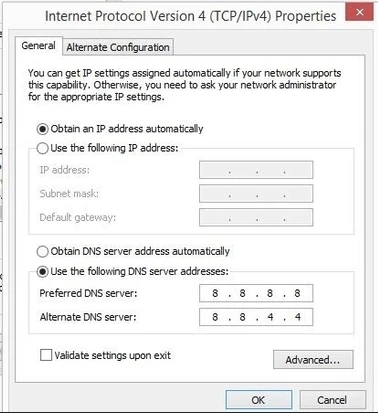
3. Change Your DNS
EasyYour ISP's default DNS servers can cause routing issues or be slow to resolve Valve's server addresses. Switching to Google DNS or Cloudflare DNS is free and takes 30 seconds:
- Press Win + S and search for "View network connections"
- Right-click your active connection (WiFi or Ethernet) and select Properties
- Double-click Internet Protocol Version 4 (TCP/IPv4)
- Select "Use the following DNS server addresses"
- Enter 8.8.8.8 (Preferred) and 8.8.4.4 (Alternate) for Google DNS, or 1.1.1.1 and 1.0.0.1 for Cloudflare
- Click OK and close all windows
After changing DNS, open Command Prompt as administrator and run ipconfig /flushdns to clear your old DNS cache.
4. Router Settings
Medium
If the easier fixes didn't help, your router's configuration might be the problem. Log into your router's admin page (usually 192.168.1.1 or 192.168.0.1 in your browser, credentials are often on a sticker on the router) and check these:
Enable UPnP:
UPnP (Universal Plug and Play) lets CS2 automatically request the ports it needs. If this is disabled, your router may be silently blocking CS2's traffic. Find the UPnP setting (usually under "Advanced" or "NAT") and enable it.
Try disabling IPv6:
Some routers have issues with dual-stack IPv4/IPv6 that specifically affect game traffic. Switch your router to IPv4 only as a test.
"Router settings > Setup > IPv4/IPv6 > change to only IPv4. Done." – u/MileniumLion on r/GlobalOffensive, confirmed by multiple users
Manual port forwarding (if UPnP doesn't help):
CS2 requires these ports open according to Valve's official support page:
| Protocol | Port Range | Purpose |
|---|---|---|
| UDP | 27000 - 27015 | Game client traffic |
| UDP | 27015 - 27030 | Matchmaking and HLTV |
| UDP | 27031 - 27036 | Steamworks P2P networking |
| UDP | 3478, 4379, 4380 | Steam client and voice chat |
| TCP | 27015, 27036 | Server communication |
Forward these ports to your PC's local IP address. If you're not sure how to do this for your specific router, portforward.com has step-by-step guides for hundreds of router models.
Disable router firewall (temporarily):
Many routers have their own SPI firewall or "intrusion detection" that's separate from Windows Firewall. Try setting it to "low" or disabling it temporarily. If that fixes the error, add exceptions for CS2's port ranges rather than leaving it off.
5. Fix Your MTU
AdvancedThis is the fix that solves the problem when nothing else does, and most guides skip it. MTU (Maximum Transmission Unit) is the largest packet your network can send in one piece. If it's too high, CS2's UDP pings get silently dropped because they're too big for your network path. No error, no warning. The packets just vanish.
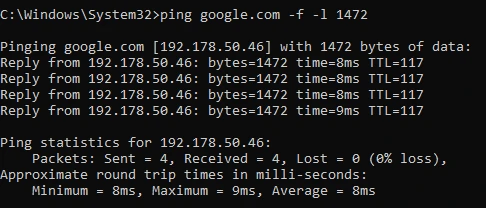
The default Windows MTU is 1500 bytes, but depending on your connection type (PPPoE, cable, VPN) your network might need a lower value. There's a simple test to find out.
Find your optimal MTU:
- Open Command Prompt as administrator (Win + S, type "cmd", right-click, Run as administrator)
- Run:
ping google.com -f -l 1472 - If it says "Packet needs to be fragmented but DF set", lower the number by 10 and try again (for example
-l 1462, then-l 1452) - When the ping succeeds, you've found the largest working size. Add 28 to that number (for IP and ICMP headers) to get your optimal MTU
Set your new MTU:
- Still in the admin Command Prompt, run:
netsh interface ipv4 show subinterfaces - Note your connection name (for example "Wi-Fi" or "Ethernet")
- Run:
netsh interface ipv4 set subinterface "Wi-Fi" mtu=1472 store=persistent - Replace "Wi-Fi" with your connection name and 1472 with your optimal value
"For anyone with this issue: I fixed it by changing MTU Size to 1492 (my router's recommended size)." – u/Stocky12_ on r/GlobalOffensive
This is often the fix for people who post "I've tried EVERYTHING" threads, because nobody tells them to check their MTU. For a visual walkthrough of the full process, Digital Solved's video guide covers the MTU fix alongside the other network fixes.
6. Full Network Reset
AdvancedIf none of the above worked, reset your entire Windows network stack. This is the nuclear option for network settings, but it's safe (you'll just need to reconnect to WiFi and re-enter your password).
Open Command Prompt as administrator and run these one by one:
ipconfig /flushdnsipconfig /releaseipconfig /renewnetsh winsock resetnetsh int ip reset
Restart your PC after running these. This clears your DNS cache, releases and renews your IP address, and resets the Windows network socket and IP configuration to defaults.
Or through the UI: Settings > Network & Internet > Advanced network settings > Network reset > Reset now.
PC-Side Fixes (Hotspot Also Failed)
If CS2 doesn't work on mobile data either (and you've confirmed servers are up via steamstat.us), something on your PC is blocking the connection.
1. Disable VPN or Proxy Software
EasyEven if you think you're not using a VPN, check for background tools that modify your network:
- Cloudflare WARP (1.1.1.1 app) runs silently in the system tray
- Corporate or school VPN clients may auto-connect at startup
- iCloud Private Relay on Apple devices connected to the same network
- Proxy settings: Press Win + S, search "Proxy settings", make sure "Use a proxy server" is turned off
2. Run Steam as Administrator
EasySome Windows configurations restrict Steam's network access unless it runs with elevated permissions. Right-click the Steam shortcut, select Run as administrator, then launch CS2.
If this fixes it, make it permanent: right-click the Steam shortcut > Properties > Compatibility tab > check "Run this program as an administrator."
3. Reinstall Network Adapter Driver
MediumA corrupted network driver can cause issues that only affect specific types of UDP traffic:
- Press Win + X and select Device Manager
- Expand Network adapters
- Right-click your active adapter (for example "Intel I225-V" or "Realtek PCIe") and select Uninstall device
- Restart your PC. Windows will automatically reinstall the default driver
"Try uninstalling your network adapter driver and install a new one from your motherboard support page." – u/samuel10998 on r/cs2
4. Increase Max Acceptable Ping
EasyIf your max ping setting is too low, CS2 might not find any relays within your threshold:
- Open CS2 and go to Settings > Game
- Find "Max Acceptable Matchmaking Ping"
- Set it higher (try 100-150ms) and attempt matchmaking again
5. Reinstall CS2
EasyLast resort. Uninstall CS2 through Steam, restart your PC, then install it fresh. Your settings, skins, and rank are stored server-side so you won't lose anything.
Other CS2 "Failed to Reach Any Official Servers" Errors
The "failed to reach any official servers" error isn't the only connection error in CS2. Here are related errors and whether the same fixes apply:
| Error Message | Meaning | Same Fixes? |
|---|---|---|
| "An unknown network error occurred" | Generic catch-all for any connection failure. Usually the same root cause as the relay error. | Yes, follow this guide |
| "Unable to fetch network configuration by HTTPS" | CS2 can't download the SDR relay configuration from Valve's servers. Firewall or DNS blocking HTTPS traffic to Valve. | Yes, especially the firewall and DNS fixes |
| "Failed to connect to the match" | You found a match but can't join the server. Often a temporary issue with the specific server. | Partially. Restart Steam first. If persistent, yes. |
| "Can't establish connection to game server" | CS2 can't connect to a community or workshop server. Same underlying cause: UDP traffic is blocked or can't reach the server. | Yes, the firewall and port forwarding fixes apply |
| Matchmaking queue cancels after ~10 seconds | No error message shown, the queue just silently stops. The client failed the relay ping check in the background. | Yes, this is the same relay error without the popup |
| "VAC was unable to verify your game session" | Different issue entirely. VAC can't verify your game files, not a network error. | No. Verify game files and ensure no software interferes with VAC. |
What the Error Actually Means (Technical)
If you're the type who wants to understand what's happening under the hood, here's the full picture.
CS2 doesn't connect you directly to a game server. All traffic goes through Valve's Steam Datagram Relay (SDR) network. Think of it as a private gaming VPN that Valve runs. SDR has 49+ relay clusters on every continent, encrypts and authenticates all traffic, hides your real IP from other players (protecting you from DDoS), and routes your packets through Valve's own backbone for lower latency.
Before you can queue for a match, your CS2 client sends UDP pings to every reachable relay cluster to measure latency. The game picks the best relays for your connection. When the error says "all attempts to ping any relay in the worldwide network via UDP have failed", it means not one of those 49+ relays responded.
The two causes Valve mentions are the right ones:
- Firewall: outbound UDP packets on the ports Valve's relays use are being blocked before they leave your network
- MTU: your packets exceed the maximum size your network path supports, so they get silently dropped (not rejected, not errored, just gone)
~) and type net_print_sdr_ping_times.
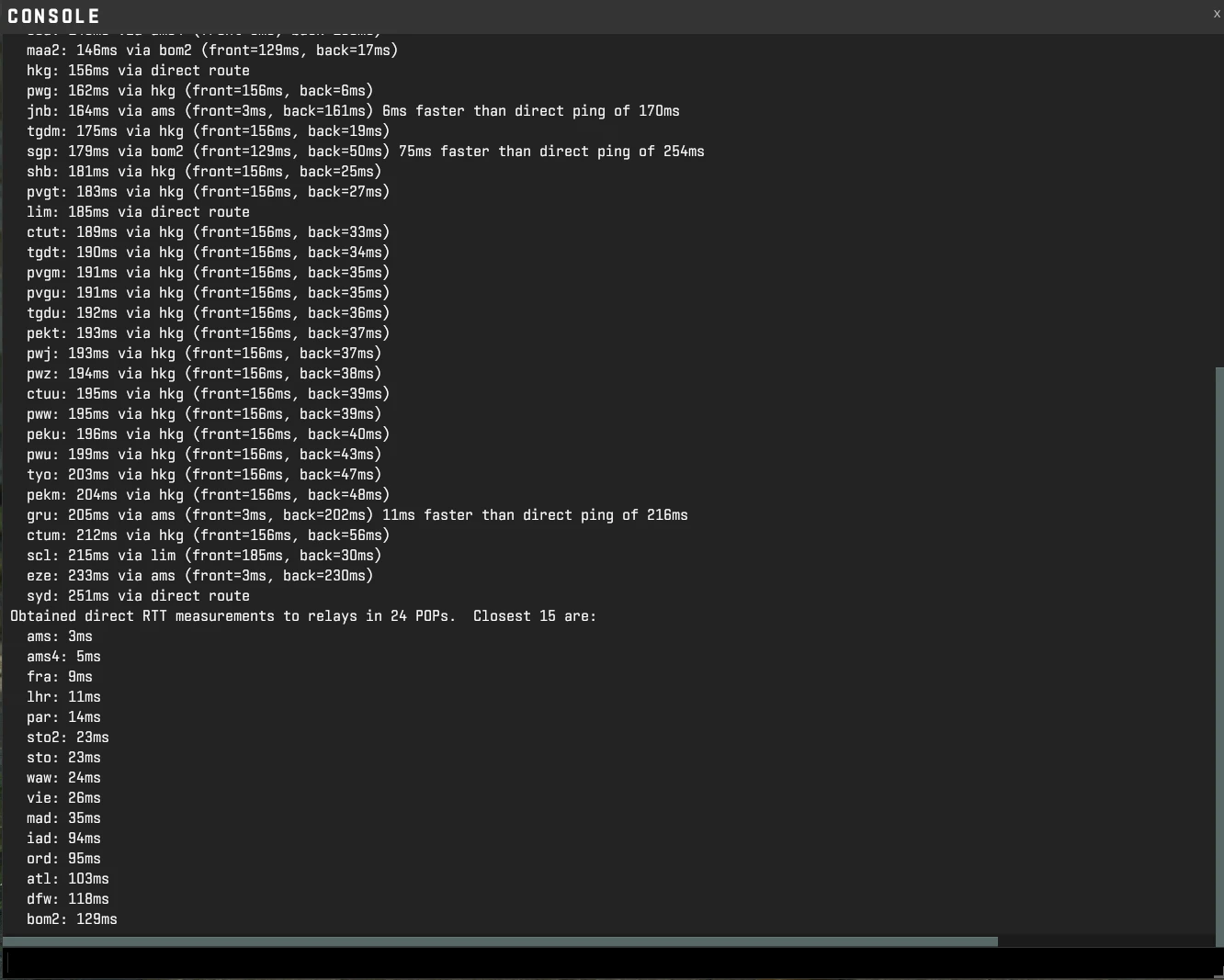 This prints the current ping times to all Steam Datagram Relay (SDR) points of presence and the selected network route. If no relays show up or all show as unreachable, the relay pings are not getting through.
Why Valve's Error Messages Need Work
The "failed to reach any official servers" message is one of the more descriptive errors in CS2, and it's still barely useful. The expanded version about UDP relays and MTU at least points you in the right direction. But plenty of network errors just say "An unknown network error occurred" with zero context. No error code, no link to a help page, nothing.
The fact that thousands of players end up on Reddit and YouTube trying random fixes is a documentation failure on Valve's end. There's no in-game troubleshooting wizard, no link to Valve's own network troubleshooting page, and no diagnostic tool that checks your firewall and MTU for you.
The console command net_print_sdr_ping_times already does most of the diagnostic work. It just needs a player-friendly UI on top. For a game with over a million concurrent players, that shouldn't be too much to ask.
Frequently Asked Questions
Why does CS2 say "failed to reach any official servers"?
Before you can play, CS2 tries to connect to Valve's game servers around the world. If something is blocking that connection, like a firewall, wrong network settings, or a server outage, CS2 can't reach any of them and shows this error. The most common fixes are checking your firewall, restarting your router, or adjusting your MTU setting.
How do I quickly check if CS2 servers are down?
Go to steamstat.us to see if Steam and CS2 services are working right now. You can also check Downdetector to see if other players are reporting problems. Remember that Steam goes down every Tuesday evening (around 23:00 GMT) for maintenance.
How do I know if CS2 matchmaking failed because of my network or Valve's servers?
Turn on your phone's mobile hotspot, connect your PC to it, and try playing CS2. If it works on your phone's internet but not on your home WiFi, the problem is your home network. If it also fails on your phone, check steamstat.us to see if servers are down.
What ports does CS2 need open?
CS2 needs UDP ports 27000-27036, 3478, 4379, 4380, and TCP ports 27015 and 27036 to be open. If your router or firewall blocks these, CS2 can't connect. The full list is on Valve's support page. You can open them through your router settings or by enabling UPnP.
What is MTU and why does it cause CS2 connection errors?
MTU is a network setting that controls how big the data packets your connection sends can be. If it's set too high, the packets CS2 sends are too big and get silently dropped along the way. Lowering it to 1472 usually fixes the problem. You can test your MTU by running ping google.com -f -l 1472 in Command Prompt.
Does a VPN fix the CS2 matchmaking failed error?
A VPN can sometimes fix it because it sends your traffic through a different route. But it adds lag and isn't a real solution. If a VPN works, that tells you the problem is your home network or internet provider. Fix your firewall or MTU settings instead.
Why does CS2 work on mobile hotspot but not my home WiFi or ethernet?
Your phone uses a completely different internet connection than your home network. If CS2 works on your phone's hotspot, the game itself is fine and the problem is somewhere in your home network: your router, firewall, or internet provider settings.
Can antivirus software block CS2 from connecting to servers?
Yes. Programs like Malwarebytes, Avast, Norton, and Kaspersky have built-in network protection that can accidentally block CS2. Try turning off your antivirus web shield temporarily and see if CS2 connects. If it does, add cs2.exe and steam.exe as exceptions in your antivirus.
Further Reading
- Steam Support: Required Ports for Steam
- Steam Support: Troubleshooting Network Connectivity
- Valve: Steam Datagram Relay Documentation
- steamstat.us: Real-time Steam & CS2 Status
- portforward.com: CS2 Port Forwarding Guides
- Digital Solved: How To Fix CS2 Matchmaking Failed – Video walkthrough of the most common fixes
- DeepLaughs: Fix Failed To Reach Any Official Servers – Covers server status checks and DNS fixes
- CS2 Trust Factor Explained – If matchmaking quality is also poor after fixing the connection
- Steam Desktop Authenticator Guide – Secure your Steam account
- 10 Most Common CS2 Scams – Protect your skins while you're troubleshooting online
Still stuck after trying everything? Come ask in the CS2 Central Discord where 22,500+ players can help troubleshoot. Tell us which step you're on and whether the hotspot test passed or failed, and we'll point you in the right direction.